

Portraits on a clean background
Turn an outdoor portrait into a clean, studio-ready image.
Real-world examples
See how a white background, a transparent PNG, or a clean replacement background helps product listings, profile photos, and everyday image edits. Each example starts with a real photo and finishes with a focused result.
Turn an outdoor portrait into a clean, studio-ready image.
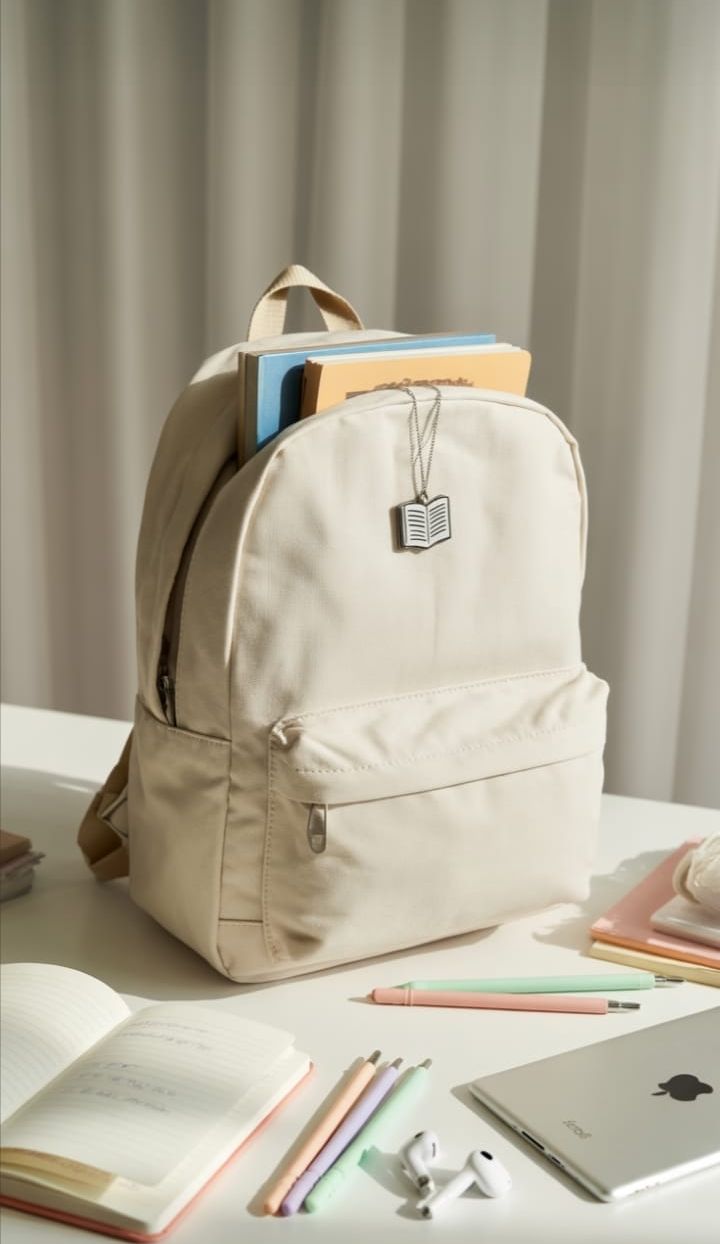
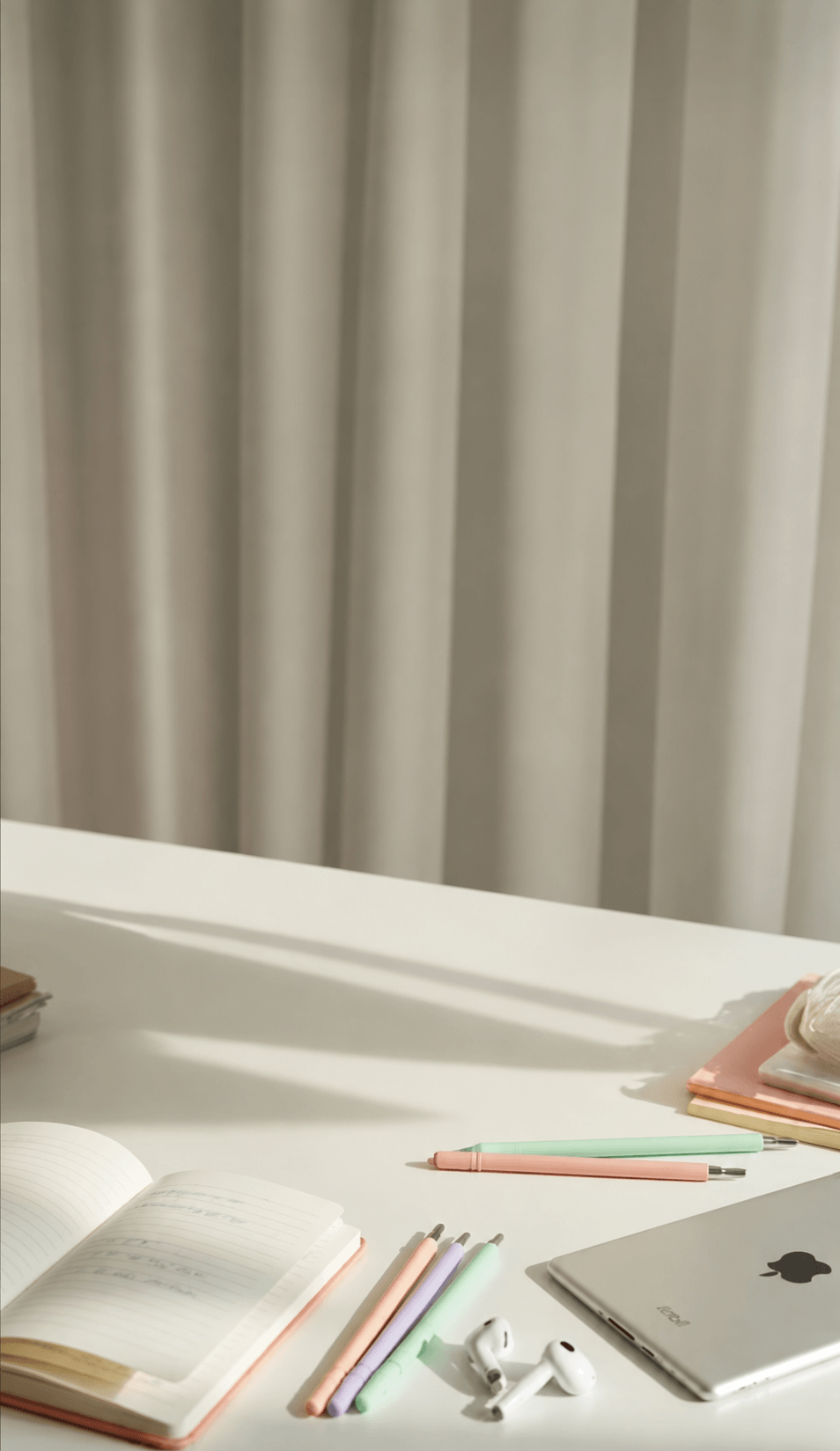
Clean up product scenes while preserving the surrounding details.
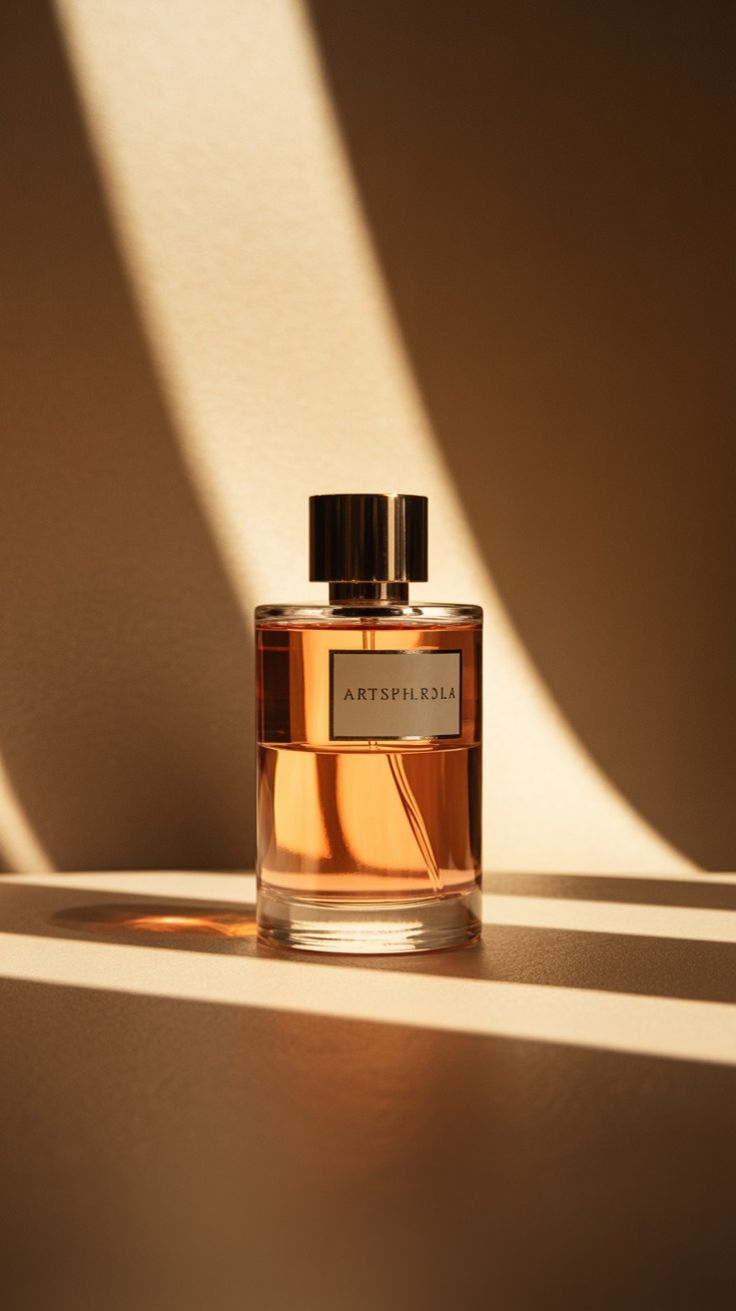

Create polished product images that keep the attention on the item.


Prepare distinctive product photography for any storefront or campaign.
How to make a background white
Choose the mode that matches the result you need. The editor uses the same background-removal process first, then lets you keep transparency or place the subject on a clean color.
Upload a JPG, PNG, or WebP, then choose Remove background, Change background, or Transparent background.
Let the editor isolate the subject. For a new background, select a color after the original background has been removed.
Review the result and download the PNG that fits your listing, profile, design, or presentation.
For a white background, select Change background and keep the white preset. Choose Transparent background when you need a PNG with no background.